Responsibilities
Role: Lead UX Designer
Scope: User research, Workflows, Interaction & UI design, Prototyping
Team: Cross-functional with Cloud Ops & DevOps
Timeline: 10 weeks
Outcome:
Web, Carbon Design System
Situation – User frustration
Cloud operations teams rely on monitoring tools to keep systems stable, especially during live incidents. As the platform evolved to support a distributed microservices architecture, the existing monitoring experience began to break down.
A key change triggered this shift. The platform moved away from Custom Events, which teams trusted for precise alert control, to Smart Alerts, designed for scale. While technically sound, this transition left many users feeling uncertain and less in control during critical moments.
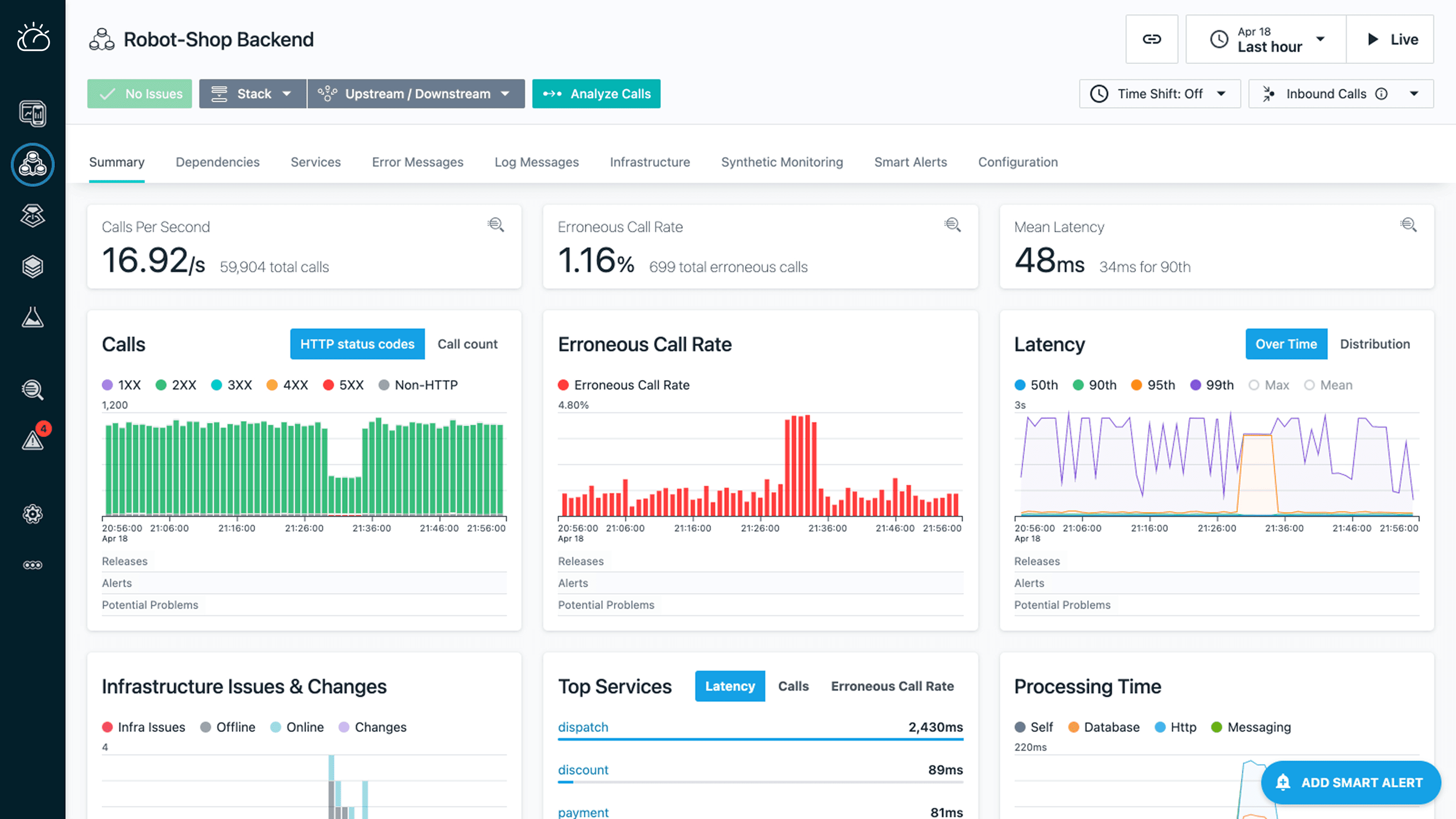
Operations teams shared that dashboards felt noisy, alerts were hard to interpret, and it took too long to understand what actually needed attention during incidents.
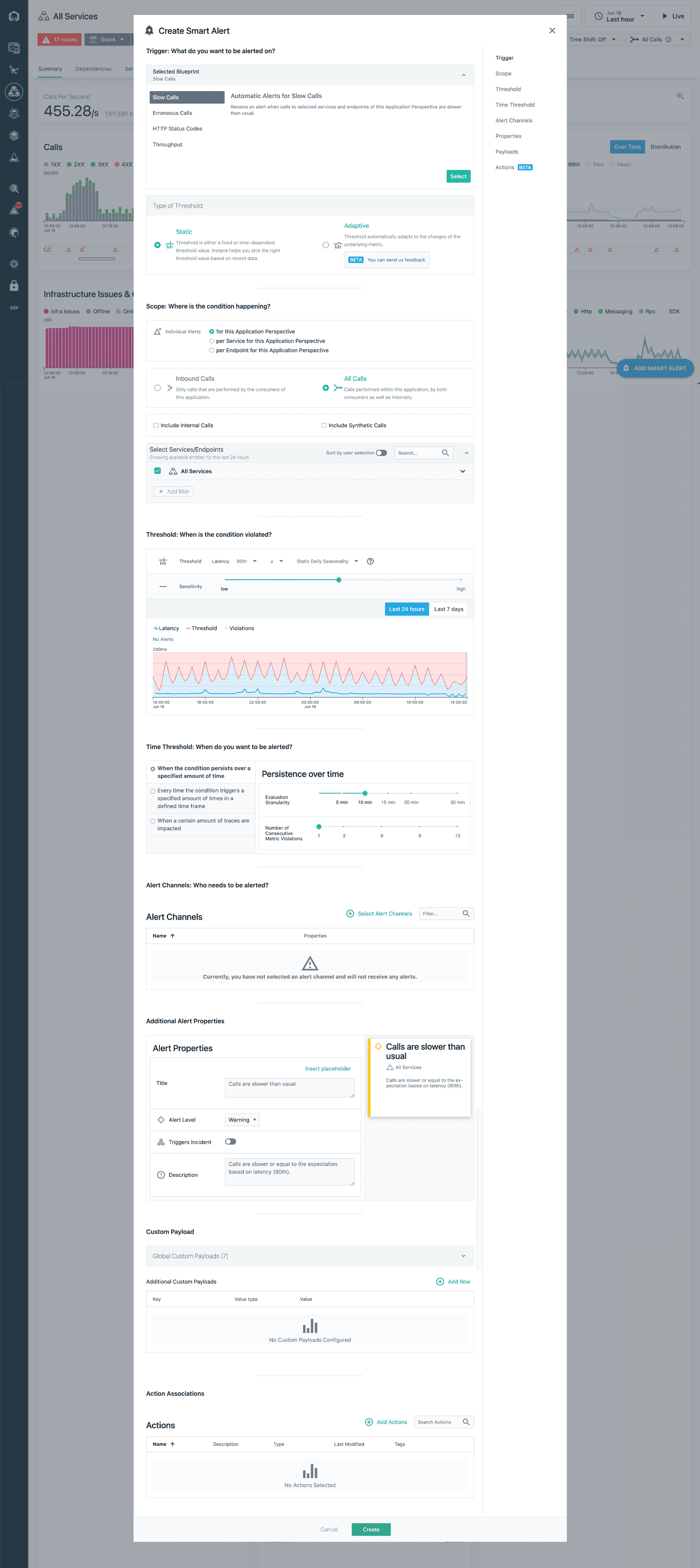
Before
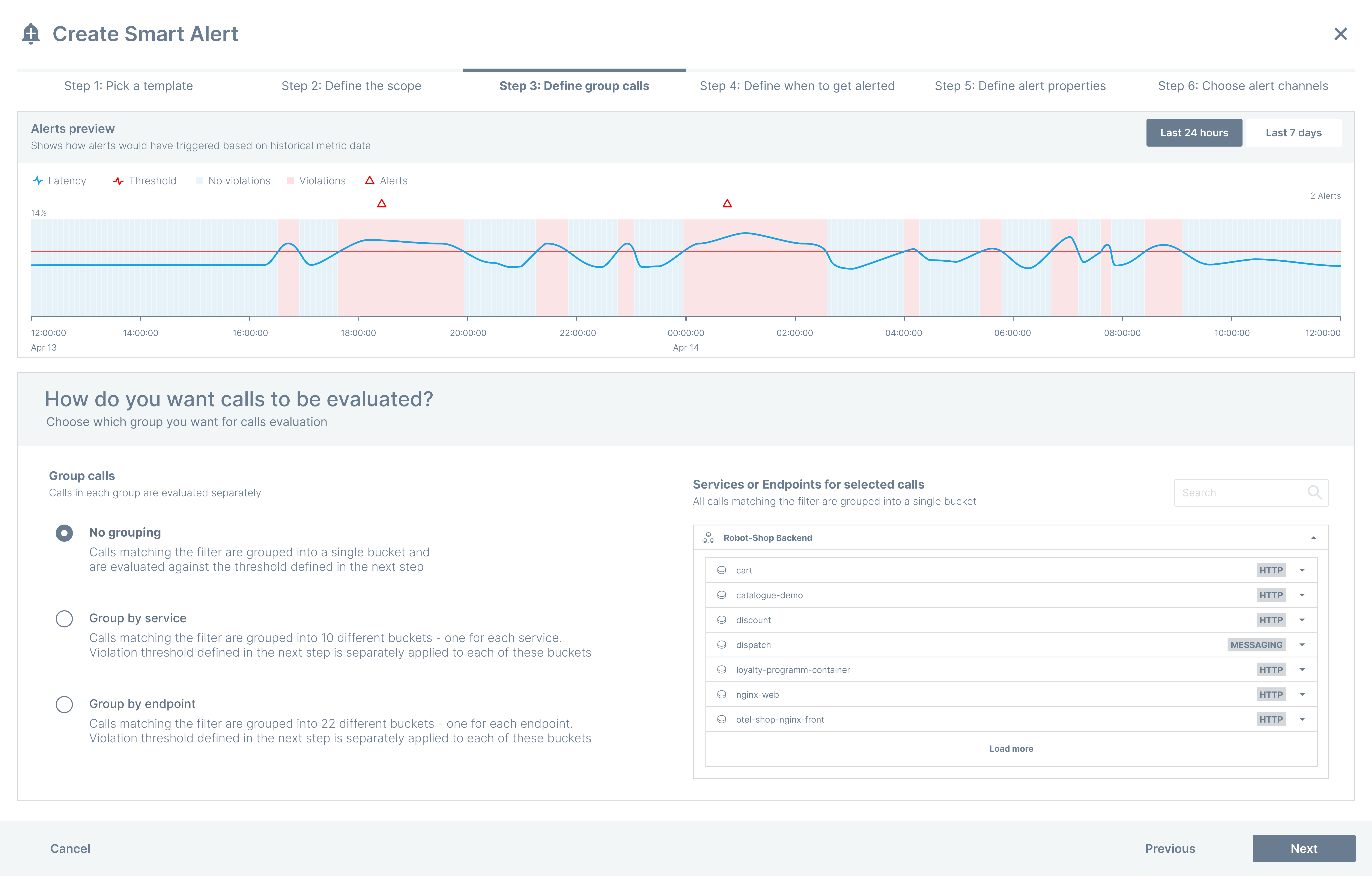
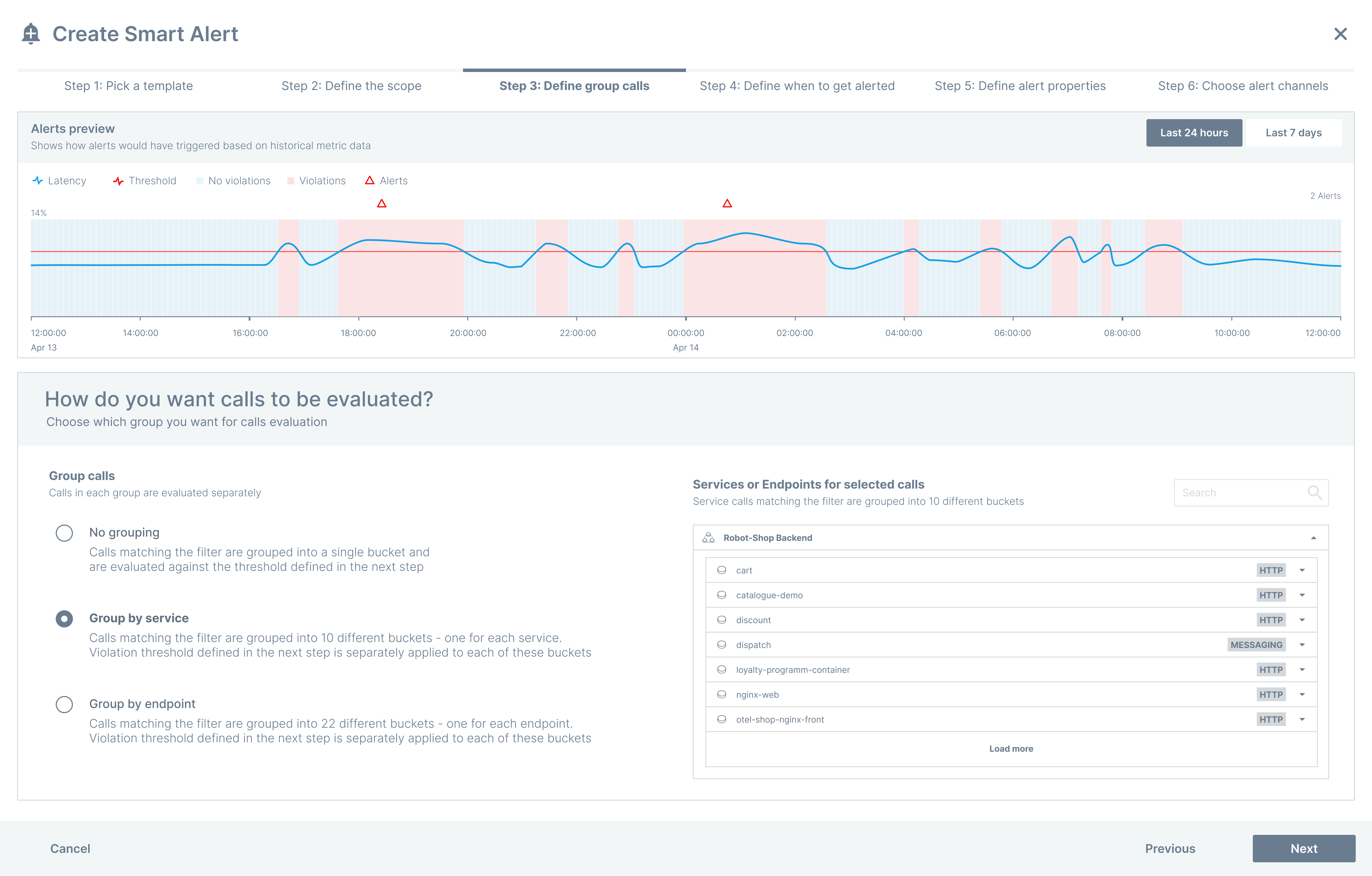
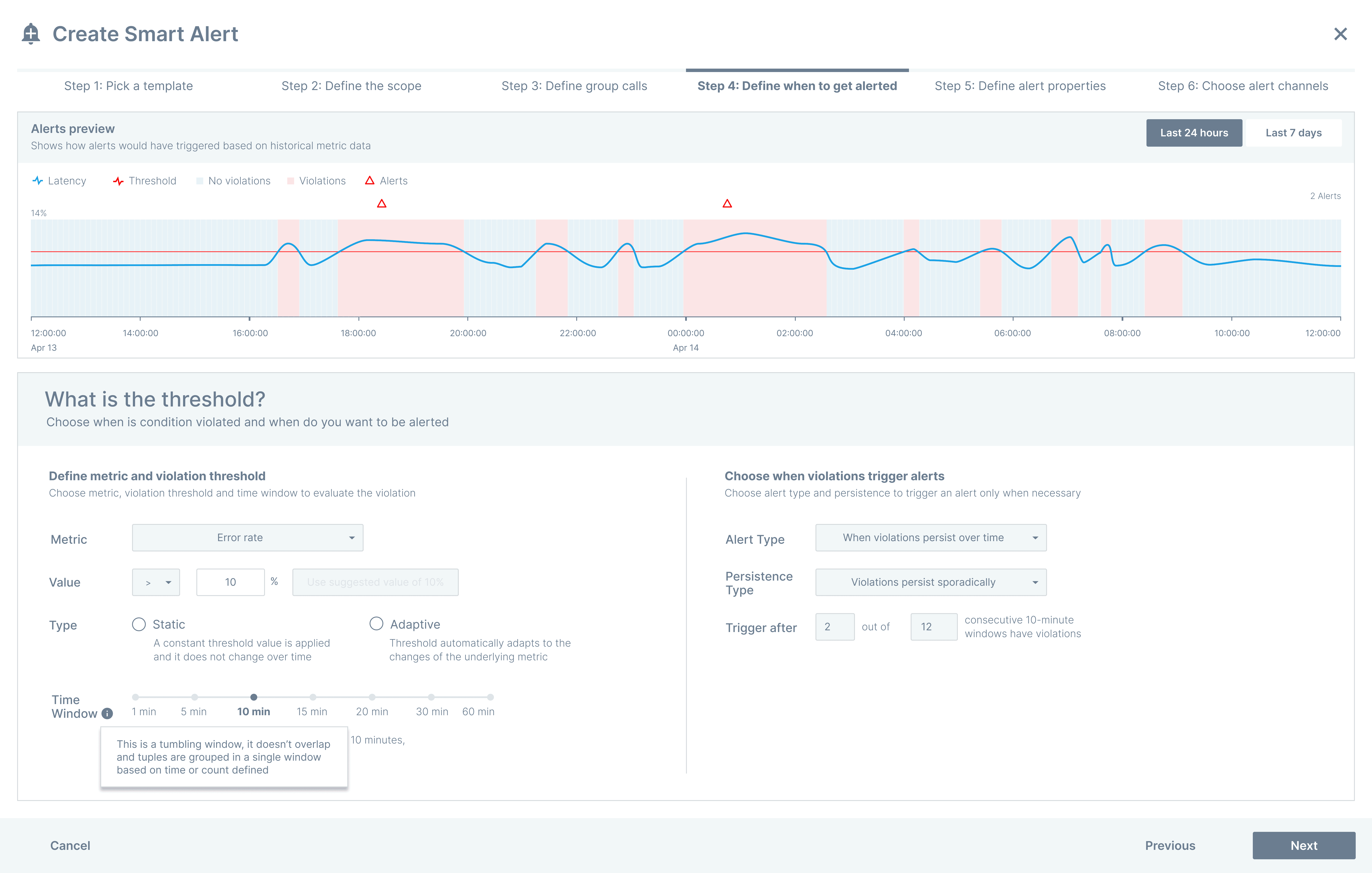
Task
My responsibility was to redesign the monitoring and alerting experience so cloud operations and DevOps teams could:
Understand system health quickly during high-pressure situations
Configure alerts with confidence and clarity
Reduce alert noise without losing important signals
Move from detection to action faster
The goal was not to add more data, but to make the existing data easier to trust and act on.
Action – Reducing Noise, Improving Decision-Making
I worked closely with cloud operations, DevOps, and SRE teams through interviews and workflow walkthroughs to understand how monitoring tools are used during real incidents.
Key insights emerged:
Users were overwhelmed by information, not lacking it
During incidents, teams wanted clear signals, not detailed analysis
Alert setup felt risky because users could not easily predict outcomes
These insights helped reframe the problem from “improving dashboards” to supporting faster understanding and confident decisions.
Personas & need statements

Need: Automate anomaly detection
“I need an intelligent alerting system that automatically detects anomalies, adjusts thresholds, and minimizes alert fatigue”
Johnathan
Site Reliability Engineer

Need: Automate alerting
“I need an intelligent, automated alerting system that dynamically adapts to my environment and diagnose even unknown issues.”
Matt
DevOps
Aligning on the user requirements
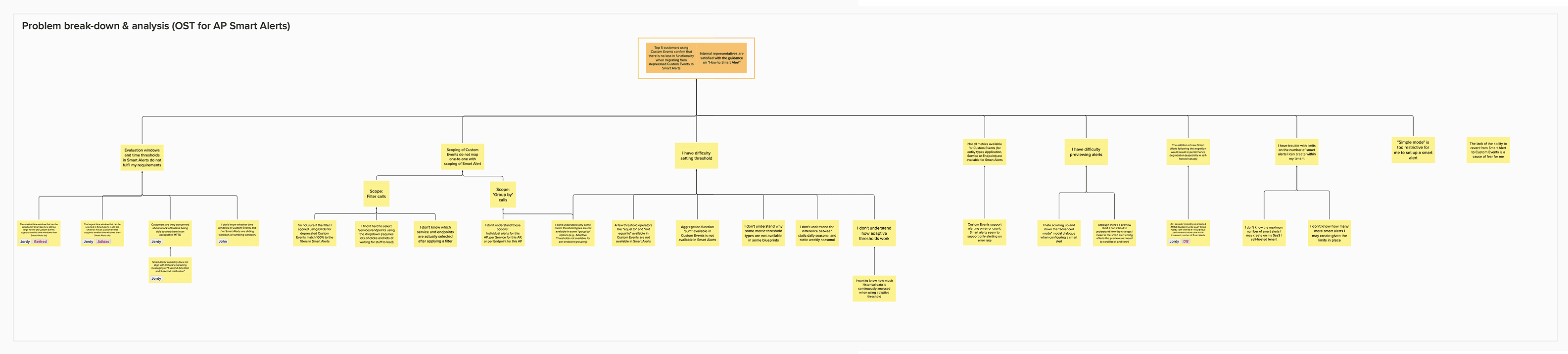
We had regular sync-ups to create a UX strategy blueprint, aligning everyone on the project objectives by identifying goals and the pain points we wanted to solve
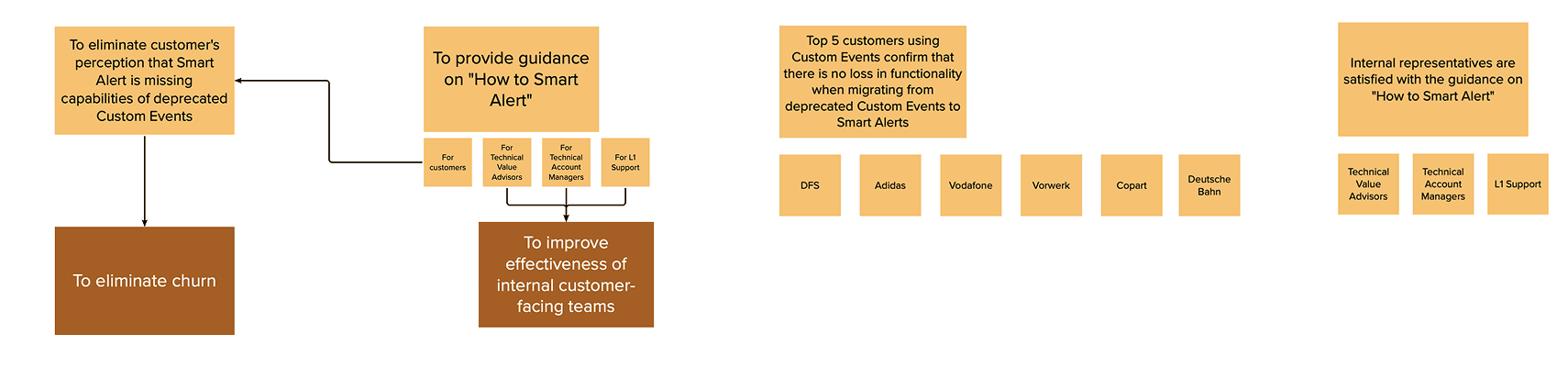
Pain points
Include restrictive evaluation windows, unclear time window types, unmet 1-second MTTD, misaligned DFQ filters, limited metric threshold options, and a cumbersome alert preview experience.
Evaluation windows: The smallest and largest time window that can be selected in Smart Alerts is still too small or large for me.
Time windows: I don't know whether time windows in Custom Events and / or Smart Alerts are sliding windows or tumbling windows
Lowered MTTD: lack of being able to alert in an acceptable MTTD, does not align with marketing messaging of 1-second detection.
Scoping: I'm not sure if the filter I applied using DFQs for deprecated Custom Events match 100% to the filters in Smart Alerts
Setting thresholds: I don't understand why some metric threshold types are not available in some "group by" options (e.g., Adaptive Thresholds not available for per-endpoint grouping)
Alerts preview: I hate scrolling up and down the "advanced mode" modal dialogue when configuring a smart alert
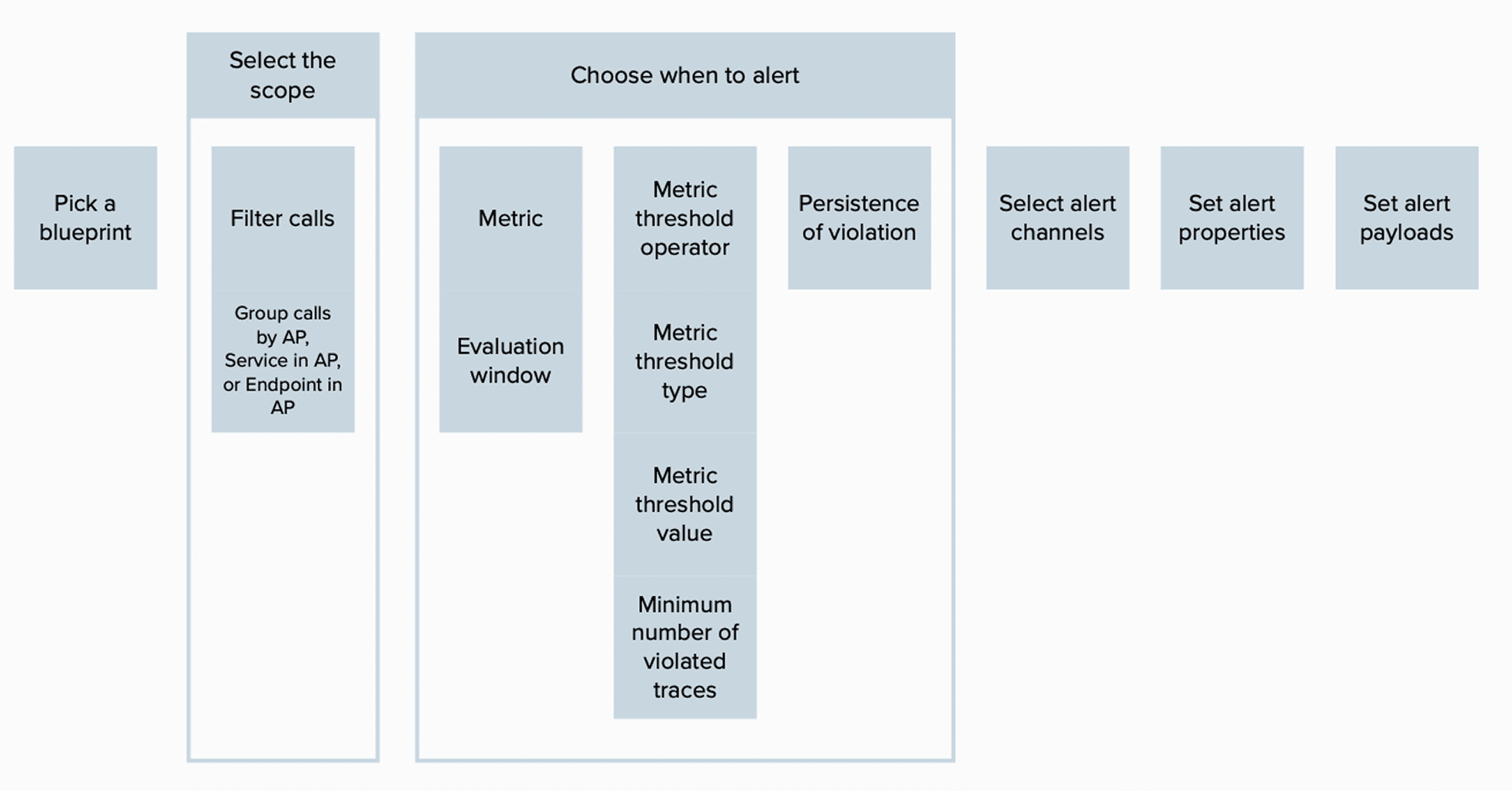
High-level user journey stages (proposed) - creating an AP smart alerts
This user journey outlines creating an AP Smart Alert, from selecting a blueprint and defining scope to configuring conditions, thresholds, persistence, and finalizing alert channels, properties, and payloads for effective monitoring.
Design Decisions
Based on these insights, I focused on three core changes:
Throughout the process, I iterated designs with engineers and validated concepts with users to ensure changes reflected real workflows.
Clear system health at a glance
Dashboards were simplified to show overall health first, followed by supporting metrics only when needed. This helped users quickly answer, “Is something wrong right now?”
Smarter alert grouping and prioritisation
Alerts were organised by impact and urgency instead of raw volume, helping teams focus on what mattered most during incidents.
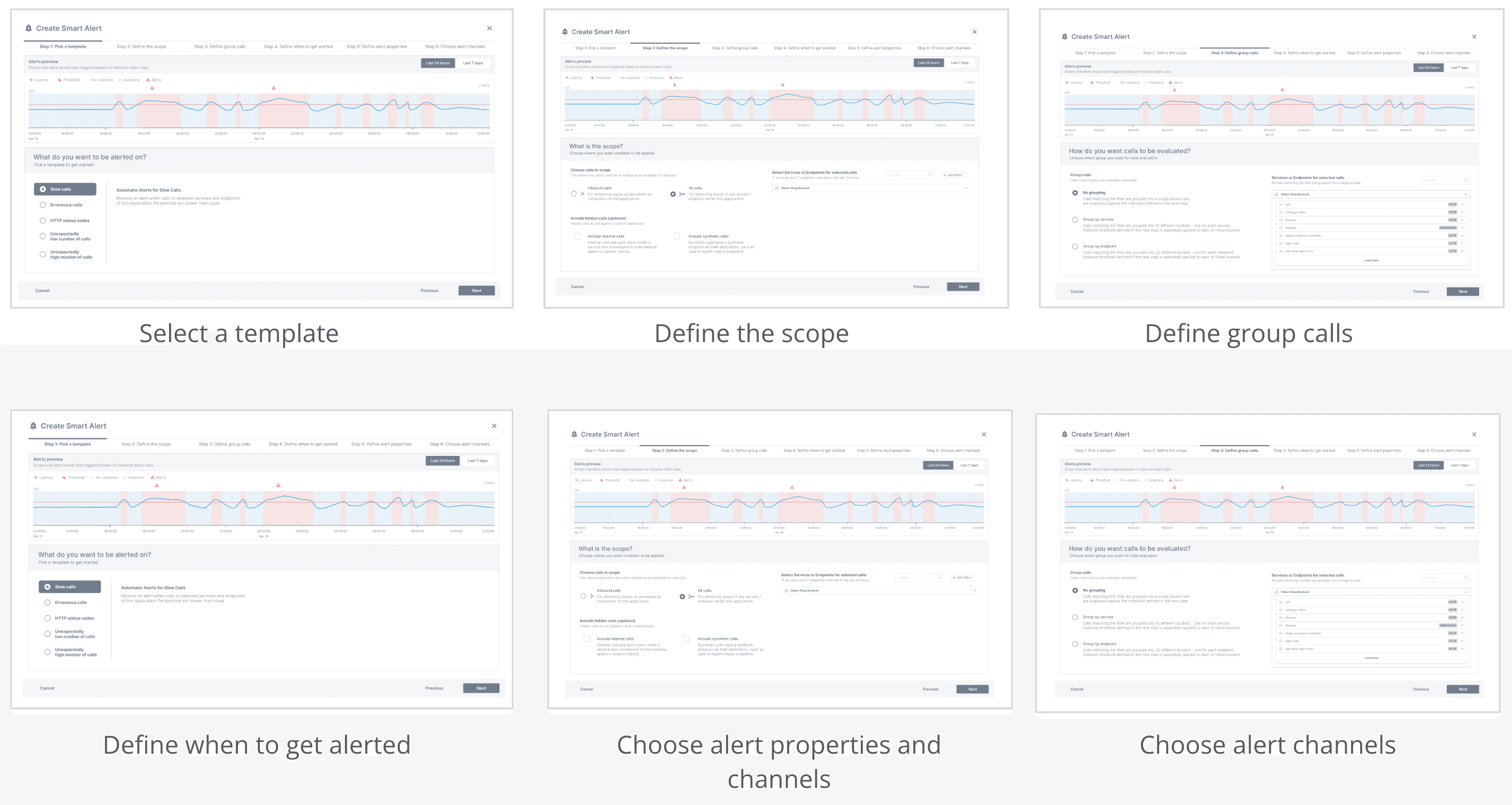
Guided alert configuration
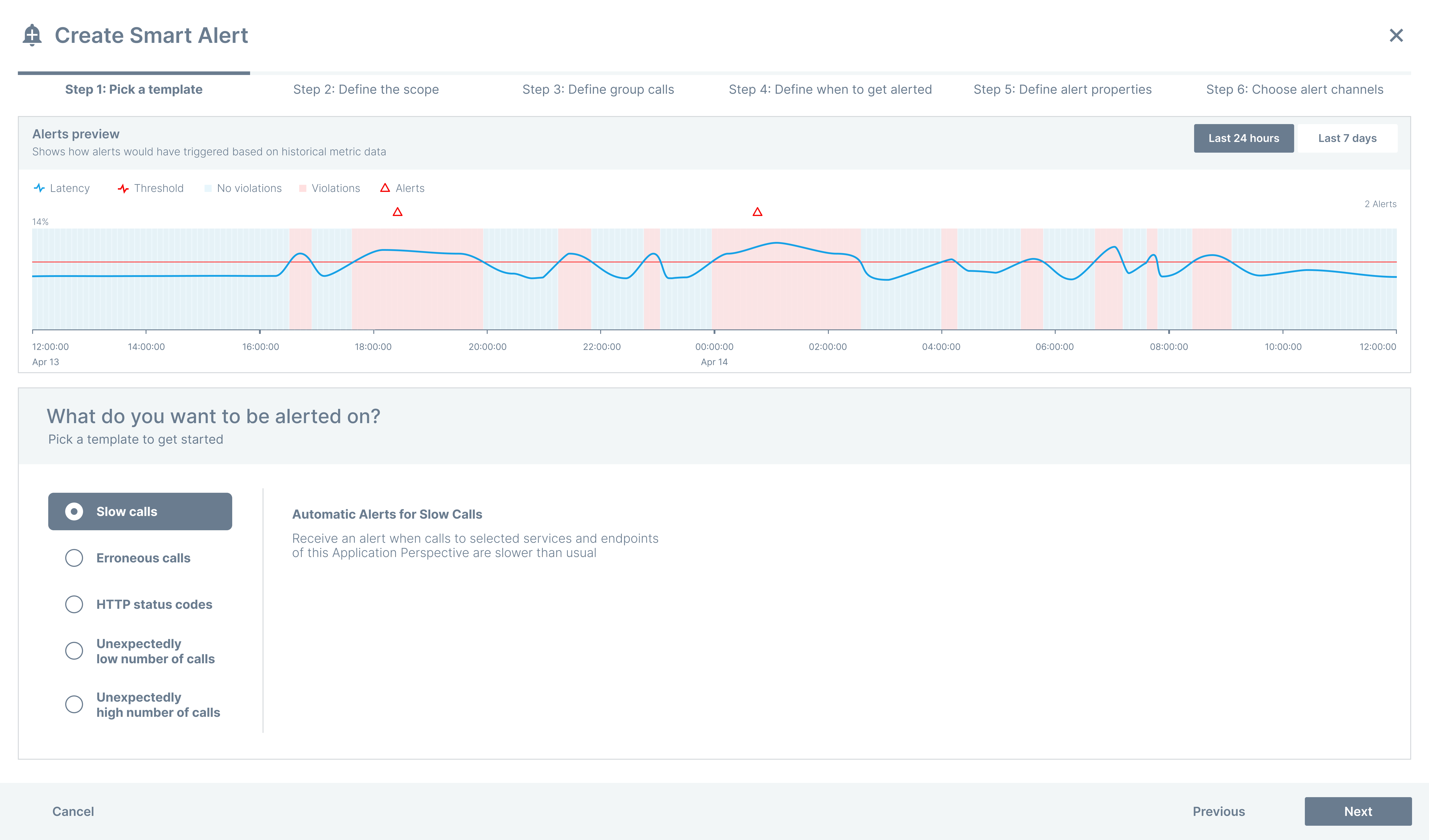
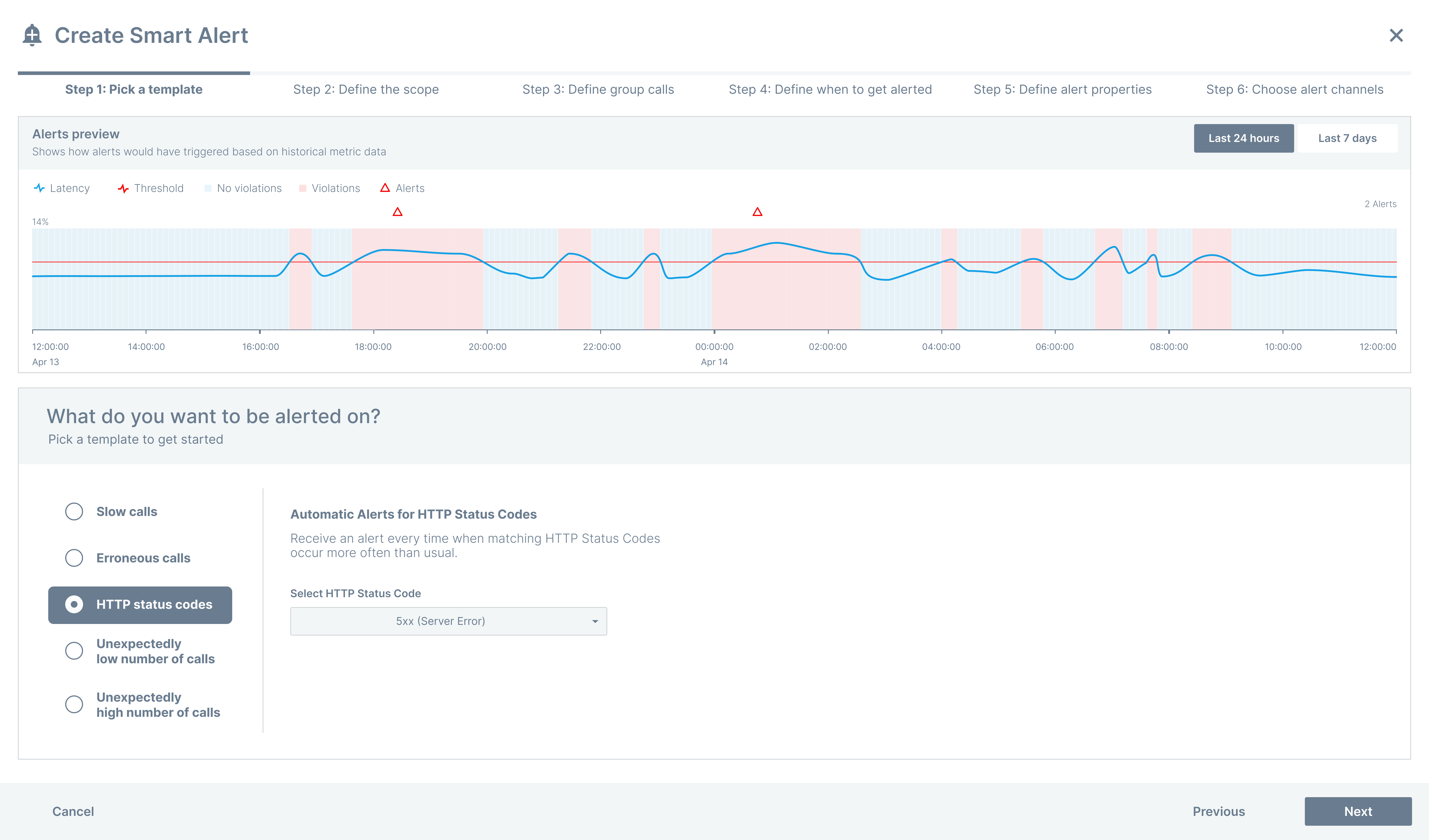
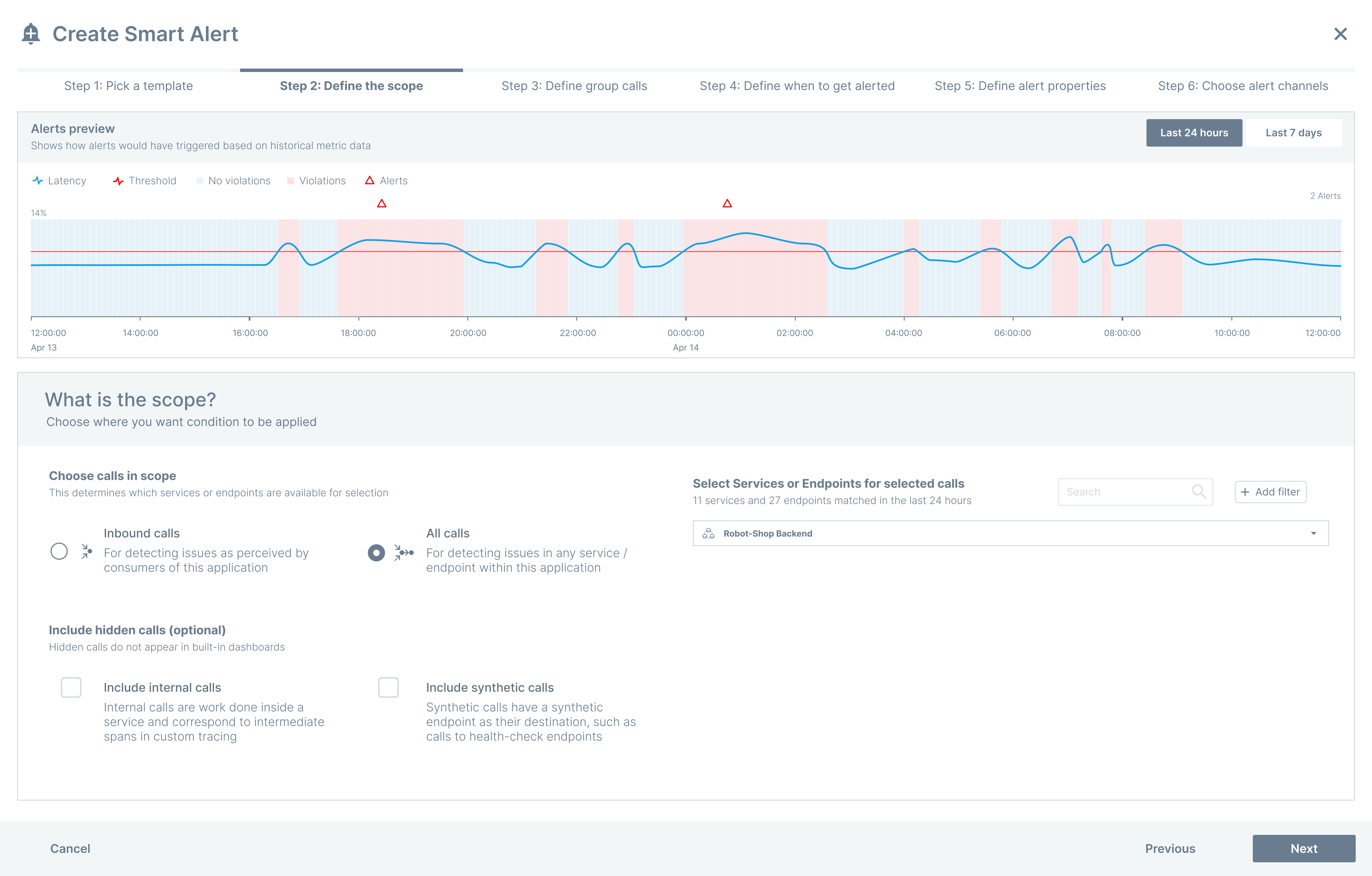
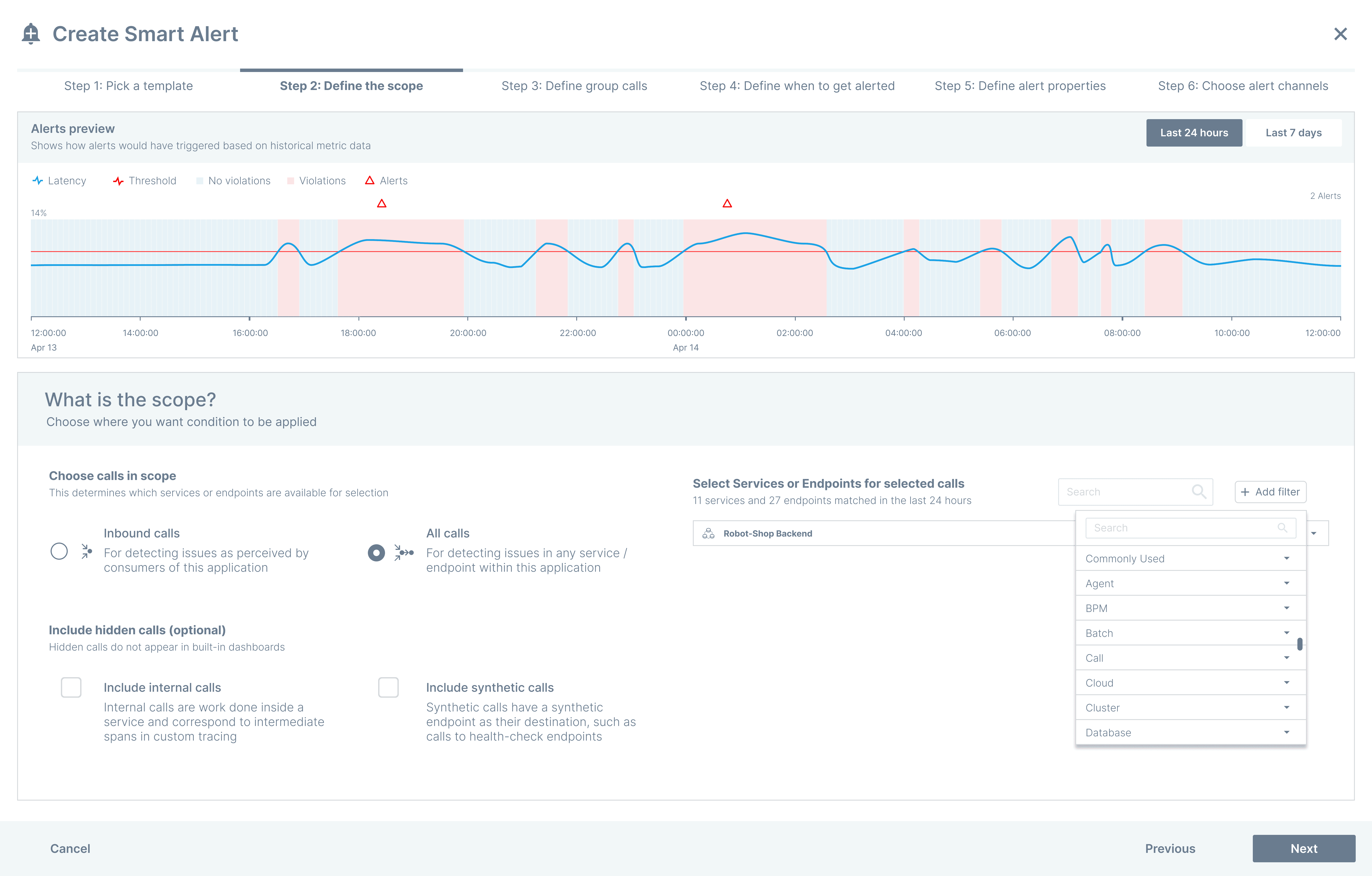
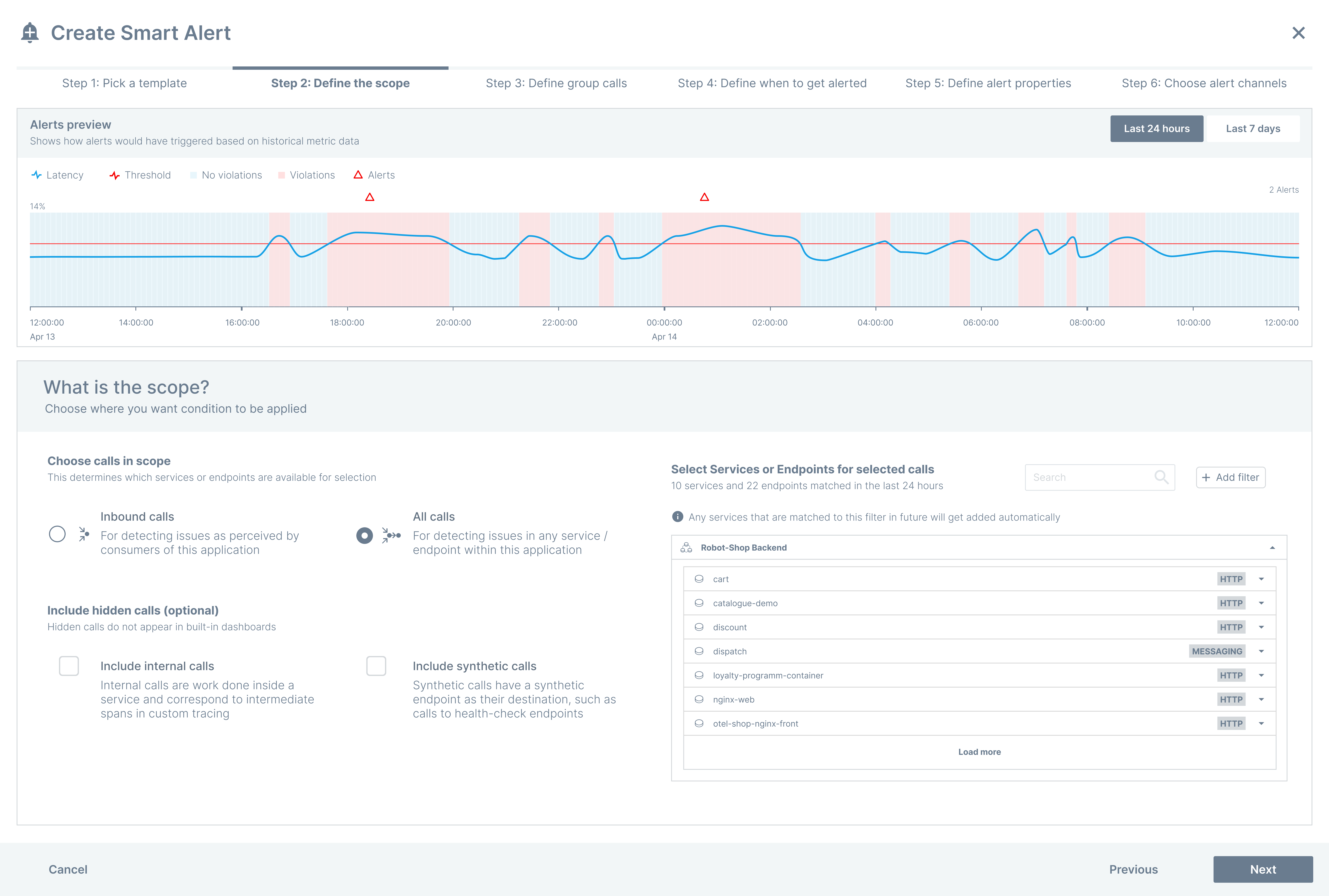
The alert setup experience was redesigned using progressive disclosure. Users could start simple, see a live preview of alert behaviour, and adjust settings with confidence before saving.
Redefining smart alerts layout for better usability
Applying the Zeigarnik Effect, our initial transition from custom events to smart alerts followed a specific layout. However, to enhance user experience, we've redefined the page structure for better clarity and usability.
Result
The redesigned experience led to clearer understanding and stronger confidence among users:
Many operations engineers reported they could identify critical issues faster during incidents
Users shared that alerts felt more predictable and easier to trust
Teams spent less time scanning dashboards and more time resolving issues
By reducing noise and improving clarity, the experience supported quicker decisions and smoother collaboration during high-pressure situations.
Learnings
Strategic Alignment: Regular sync-ups and a unified UX strategy blueprint were essential, aligning on user requirements helped us clearly identify pain points and set actionable goals for transforming Smart Alerts.
User-Centric Problem Solving: By deeply understanding frustrations, such as restrictive evaluation windows and misaligned filters, we drove design enhancements that addressed specific user needs and improved overall usability.
Iterative Redesign: Applying principles like the Zeigarnik Effect, we continuously refined our page layout and interaction flows. This iterative approach not only improved navigation and clarity but also reinforced our commitment to a seamless user experience.